



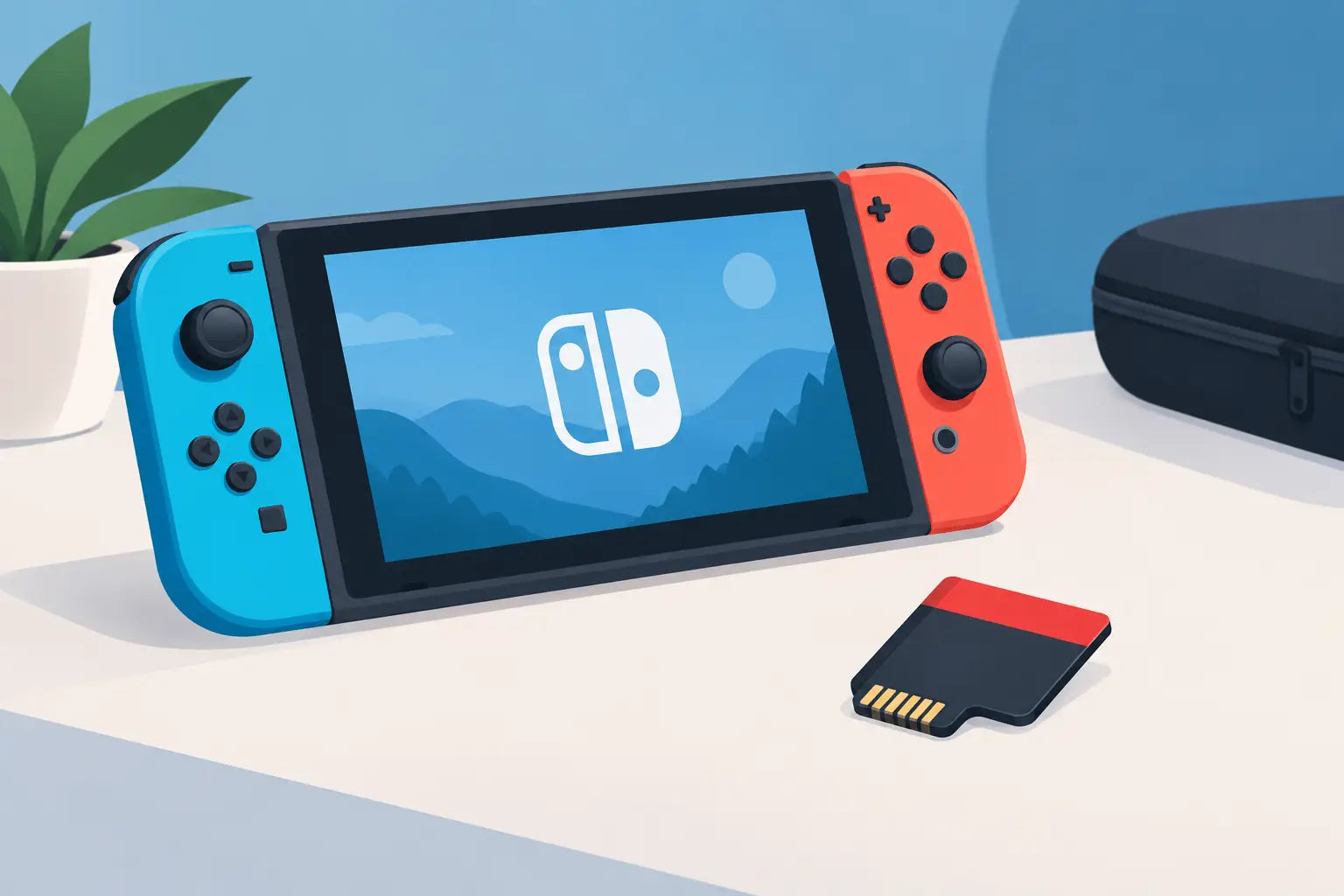
A microSD card for Nintendo Switch is one of the most useful upgrades you can buy if your Home screen is filling up with download icons and storage warnings. The console’s built-in storage is enough for a few games, but modern digital titles, updates and downloadable content can quickly use it up. The right card gives you room to keep more of your library installed and ready to play.
The good news is that choosing one does not need to be expensive or complicated. For an original Nintendo Switch, Switch Lite or Switch OLED, capacity matters far more than paying extra for extreme read speeds or a character-branded design.
Which microSD card for Nintendo Switch is compatible?
The original Nintendo Switch family works with standard microSD cards in three formats: microSD, microSDHC and microSDXC. In practical terms, that covers cards from smaller 32GB options through to high-capacity 1TB and 2TB models.
Look for a genuine UHS-I microSD card from a recognised storage brand. The Switch uses the UHS-I interface, so a more expensive UHS-II card will still work, but it cannot deliver its full advertised speed in the console. That makes it poor value for most players.
A card labelled Class 10, U1 or U3 is suitable. Many reliable 128GB, 256GB and 512GB cards meet these specifications as standard. You may also see A1 or A2 app-performance ratings and V30 video ratings. These are not a problem, but they are not features you need to pay a premium for when buying storage for a Switch.
Nintendo-branded cards are compatible, but they are not technically required. A standard, genuine card with the right capacity and UHS-I rating will do the same job. Choose based on trusted manufacturer, storage size and price rather than the artwork on the packaging.
A note for Nintendo Switch 2 owners
This advice is for the original Switch, Switch Lite and Switch OLED. Nintendo Switch 2 uses microSD Express cards for game storage. Standard microSD cards designed for the earlier Switch range are not the correct choice for installing Switch 2 games, so always check which console you are buying for before adding a card to your basket.
Choose capacity before chasing speed
The best capacity depends on how you buy and play games. If you mainly use physical cartridges, a smaller card can be enough, although game updates and downloadable content still take space. If you buy from the Nintendo eShop, plan for more room from the start.
A 128GB card is a sensible entry point for casual players with a modest selection of digital games. It is a substantial improvement over the console’s internal storage and suits households that play a handful of titles at a time.
For most people, 256GB is the strongest value option. It provides room for a broad mix of indie games, larger Nintendo releases, updates and DLC without the need to constantly archive titles. It is also often priced close enough to 128GB that the extra space makes sense.
A 512GB card is worth considering for players with a sizeable digital library, multiple users on one console or a preference for keeping favourite games installed. It is particularly useful if you regularly switch between big games and do not want to wait for downloads before a weekend gaming session.
A 1TB card suits collectors and heavy digital buyers, but it is not automatically the best purchase. If it costs considerably more than a 512GB card, think about how much storage you will genuinely use. Unused capacity is not better value just because the number is bigger.
How much space do Switch games use?
Game sizes vary widely. Smaller indie titles may take under 2GB, while larger first-party games and demanding third-party releases can require 10GB, 20GB or considerably more once updates are included. Expansion passes, patches and downloaded content also add up over time.
This is why the console’s internal storage can disappear faster than expected. The original Switch and Switch Lite have 32GB of internal storage, while the Switch OLED has 64GB. Not all of that space is available for games because the system software also needs room to operate.
There is no need to keep every game permanently installed. Archived games remain in your purchase history and can be downloaded again later, provided you have access to the relevant Nintendo Account and an internet connection. However, a larger card means less organising and fewer re-downloads when you want to revisit an older favourite.
Will a faster card improve loading times?
A decent UHS-I card can support reliable game loading and downloads, but buying the fastest card available will not transform the performance of the original Switch. The console itself sets the limits on how quickly it can read data.
Avoid very cheap unbranded cards that make ambitious speed claims, especially if the price seems far below comparable branded options. Poor-quality or counterfeit storage can cause failed downloads, corrupted game data or far less usable capacity than advertised. A genuine branded card from a reliable retailer is the safer choice.
For normal Switch use, prioritise capacity and authenticity. A reputable UHS-I card with Class 10 performance is the practical specification. If a U3 or V30 card is on offer at a similar price, it is a perfectly good option, but do not expect a major in-game advantage over a quality U1 model.
Installing your Nintendo Switch microSD card
Turn the console off completely before inserting the card. On the original Switch and Switch OLED, the microSD slot is behind the kickstand on the back of the console. On Switch Lite, it sits under a small cover on the lower edge.
Insert the card gently with the label facing the correct direction for your model. When you turn the console back on, it should recognise the storage automatically. If the card needs formatting, follow the on-screen instructions. Formatting removes data from the card, so do not use a card that contains files you need elsewhere without backing them up first.
Cards of 64GB and above use the microSDXC standard. A Switch may require a system update before it can use one, so connect to Wi-Fi and update the console if prompted. Once installed, downloaded games and compatible data can be stored on the card automatically.
Save data is different. Nintendo Switch save files are stored in the console’s internal memory rather than on the microSD card. A bigger card protects you from storage pressure, but it is not a replacement for a save-data backup plan. Nintendo Switch Online cloud backups can be useful for supported games, while some titles have their own limitations.
Moving to a larger card later
Starting with 128GB does not lock you in forever. If your library grows, you can move to a larger card. The simplest approach is to copy the existing card’s contents to a computer, then copy them to the new card after it has been prepared for the Switch. Check Nintendo’s current instructions for your console before beginning, particularly if you have screenshots and videos you want to keep.
Do not simply remove a card while the console is switched on or during a download. That risks data errors and can leave a game needing to be downloaded again. Power the console down first, then handle the card by its edges rather than touching the metal contacts.
The practical buying choice
For most UK Switch owners, a genuine 256GB UHS-I microSD card is the sensible balance of capacity, compatibility and price. Go for 128GB if you mainly buy cartridges and only keep a few digital games installed. Choose 512GB if you share the console, buy digitally often or want a larger library available without storage housekeeping.
There is no need to overpay for UHS-II speed, specialist gaming branding or features the Switch cannot use. Put the budget into enough capacity from a recognised brand, and your console will have the space to keep the games you actually want ready for the next play session.