



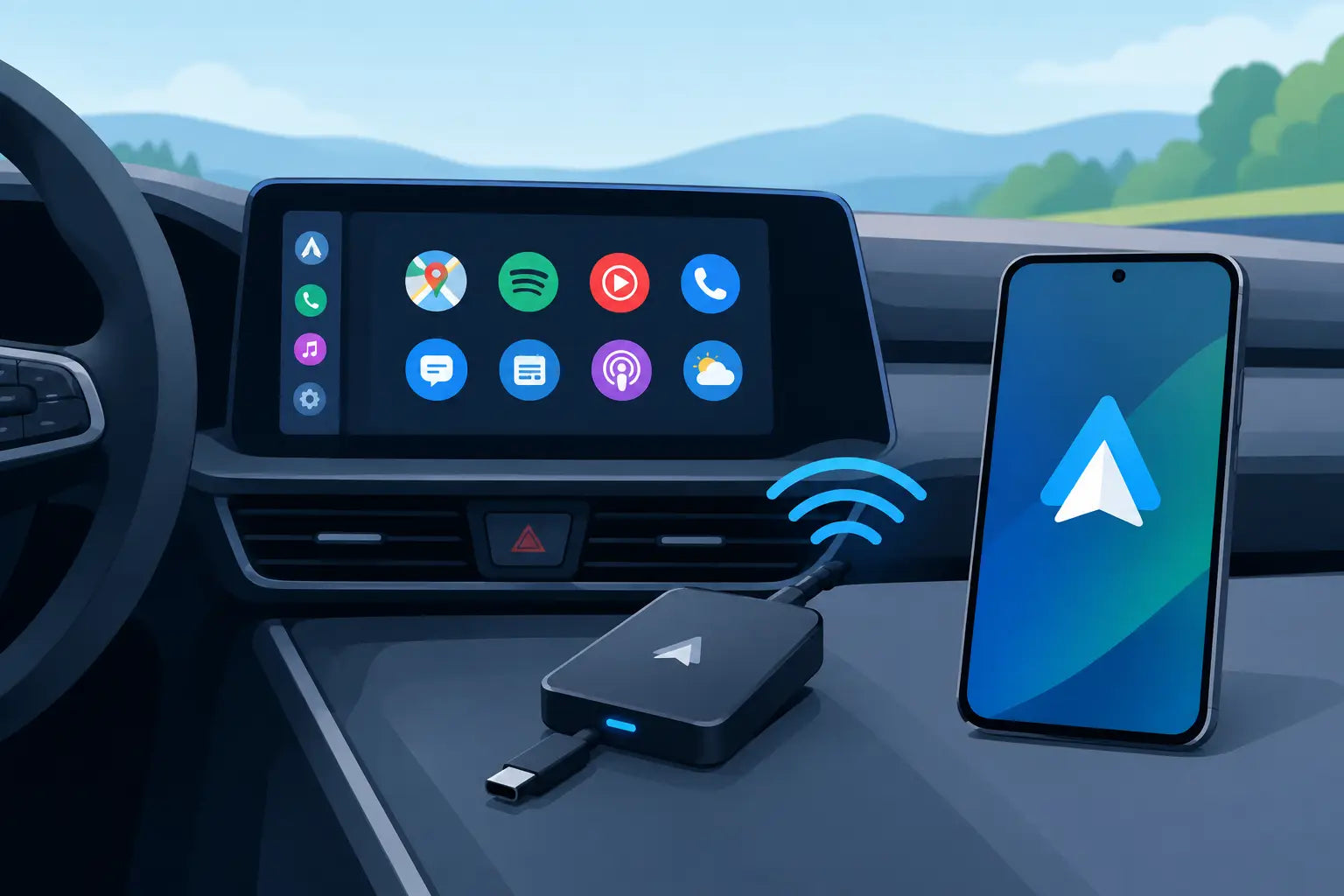
Getting into the car, plugging in a phone and then finding a lead that actually works is a small frustration that repeats every journey. An Android Auto wireless adapter is designed to remove that step, starting Android Auto automatically once you are in the driver’s seat while retaining the familiar navigation, music, calls and messaging controls on your car’s display.
For commuters, regular drivers and anyone who uses Google Maps or Spotify every time they travel, it can be one of the most useful in-car upgrades available. It is not, however, a universal fix for every infotainment system. Compatibility matters more than the headline feature, and a good buying decision starts with knowing what an adapter can and cannot do.
What an Android Auto wireless adapter actually does
Most adapters are made for vehicles that already have wired Android Auto. You connect the adapter to the car’s USB data port, pair it with a compatible Android phone, and the adapter uses Bluetooth and Wi-Fi to create a wireless Android Auto connection.
The car still provides the screen, controls and wired Android Auto capability. The adapter simply replaces the phone-to-USB-cable part of the process. Once set up, your phone should connect shortly after the car starts, allowing you to use supported apps through the vehicle display without taking the handset out of your pocket or bag.
That distinction is worth keeping clear. An adapter does not add Android Auto to a car that has no Android Auto system at all. It also will not make a basic USB charging port into an infotainment connection. If your vehicle screen has never supported wired Android Auto, you may need a different solution, such as an aftermarket head unit or a dedicated portable display.
Why go wireless?
Convenience is the main reason. A wired setup works perfectly well when the cable is to hand, but short trips make plugging in feel like a chore. With a wireless connection, the route to work, a podcast queue or hands-free calling can be ready without another action from the driver.
It also reduces wear on the phone’s USB-C port and cuts down on cable clutter around the gear lever. This can make a noticeable difference in cars with awkwardly placed USB sockets, especially where a connected cable gets in the way of cup holders or storage compartments.
There is a trade-off. A cable charges your phone while Android Auto is running. Wireless Android Auto uses more battery, particularly with navigation, mobile data and music streaming active together. Drivers who cover long distances will often still want a quality charging cable or a reliable wireless charging pad. Wireless charging can also create extra heat, so it is not always the best answer on a hot day or during a long summer drive.
Android Auto wireless adapter compatibility checks
Before choosing an adapter, check the vehicle handbook or infotainment menu for wired Android Auto support. If Android Auto only works when your phone is connected by USB, that is generally the situation these adapters are built for.
Next, identify the correct USB port. Many cars have more than one USB socket, but only one may transfer data to the head unit. An adapter connected to a charging-only socket will receive power but will not launch Android Auto. In some vehicles, the correct port is marked with a phone, projection or USB symbol.
Your phone also needs to support wireless Android Auto and have current Android software. Most modern Android handsets do, but very old phones, heavily modified software and some work-managed devices can create pairing limitations. Keep Bluetooth and Wi-Fi enabled, as both are used during the connection process.
Vehicle age alone is not a reliable guide. A 2018 car with factory wired Android Auto may work well, while a newer model may have a restricted USB setup or its own wireless system already fitted. If your car already offers native wireless Android Auto, an adapter is unnecessary.
Finally, look for model-specific compatibility notes before ordering. Brands such as Carlinkit and Ottocast make adapters in different formats, and a product intended for wired CarPlay is not automatically the right choice for Android Auto. Some units support both platforms, which can be useful in a household where drivers use different phones, but it is still best to verify the exact vehicle and phone requirements.
Setup is usually quick, but the first connection matters
The first pairing takes a few minutes rather than seconds. Plug the adapter into the vehicle’s Android Auto USB port, start the car and use the phone’s Bluetooth settings to pair with the adapter. Follow the prompts on the phone and car screen, including any permissions for contacts, calls and notifications. The adapter will then switch to Wi-Fi for the main Android Auto connection.
After this initial process, most adapters are designed to reconnect automatically. Keep the phone’s Bluetooth and Wi-Fi switched on before getting in the car. If you have paired more than one phone, check whether the adapter connects to the last-used device or lets you choose a priority device. This is particularly relevant for shared cars, where one person’s phone connecting first can be irritating rather than helpful.
It is sensible to test calls, Google Maps, voice commands and your usual music app before relying on the system for a long journey. Android Auto is designed to reduce distraction, but only if it is ready to use and configured before you set off.
Connection speed, audio and everyday performance
A decent adapter should load Android Auto quickly and keep the connection stable. There can be a short delay from starting the engine to seeing Android Auto on the display. That is normal. The exact time varies by car, phone and adapter, and older infotainment systems can take longer to boot regardless of which adapter is connected.
Audio quality is normally determined by the car’s own infotainment system rather than the adapter. Music, podcasts and calls are passed through the existing Android Auto connection, so the key performance factors are stability and latency. If audio stutters, maps lag or the connection drops, the cause may be phone battery-saving settings, an outdated adapter firmware version or wireless interference rather than a faulty unit.
Wireless adapters work best when the phone is close to the front of the car. Leaving it in a metal-lined compartment, under a pile of bags or far away in the rear can weaken the Wi-Fi connection. For most vehicles, a phone in a pocket, centre console or dashboard mount is perfectly fine.
Common issues and straightforward fixes
If Android Auto does not appear after connecting an adapter, start with the simple checks. Try the original wired Android Auto connection first. If that does not work, the issue is likely to be the car’s USB port, phone permissions or Android Auto setup rather than the adapter.
If wired Android Auto works but wireless does not, remove the adapter from the phone’s saved Bluetooth devices and pair it again. Restarting the phone and infotainment system can also clear a stalled connection. Check that the phone is not automatically joining another nearby Wi-Fi network, and turn off aggressive battery optimisation for Android Auto if your handset offers it.
Firmware updates can improve compatibility and connection behaviour, so choose a recognised adapter brand with clear support information. A very cheap unbranded unit may appear to offer the same basic function, but it can be harder to update, diagnose or replace if your car does not cooperate.
Is it worth buying one?
An Android Auto wireless adapter is a strong value upgrade if your car already has wired Android Auto, you make lots of short journeys and you are tired of connecting a cable every time. It is also useful for drivers whose USB port is positioned inconveniently or who want to preserve their phone cable for charging when needed.
It may be less worthwhile for someone who drives long motorway journeys and depends on cable charging, or for a car that already supports wireless Android Auto from the factory. In those cases, a good USB-C cable may remain the simpler, more dependable option.
For everyone else, focus on verified compatibility, recognised hardware and sensible support rather than buying on price alone. A compatible adapter from a curated retailer such as FatBat, backed by clear warranty cover, gives you a better route to a cable-free setup that works day after day. Check your vehicle’s wired Android Auto function first, then choose the adapter around the car and phone you already own.